Printer ink smudging — match the paper type setting
Printer ink
Printer ink smudging or staying wet? Check that the print dialog paper type matches the paper in the tray. Wrong settings lay down too much ink.
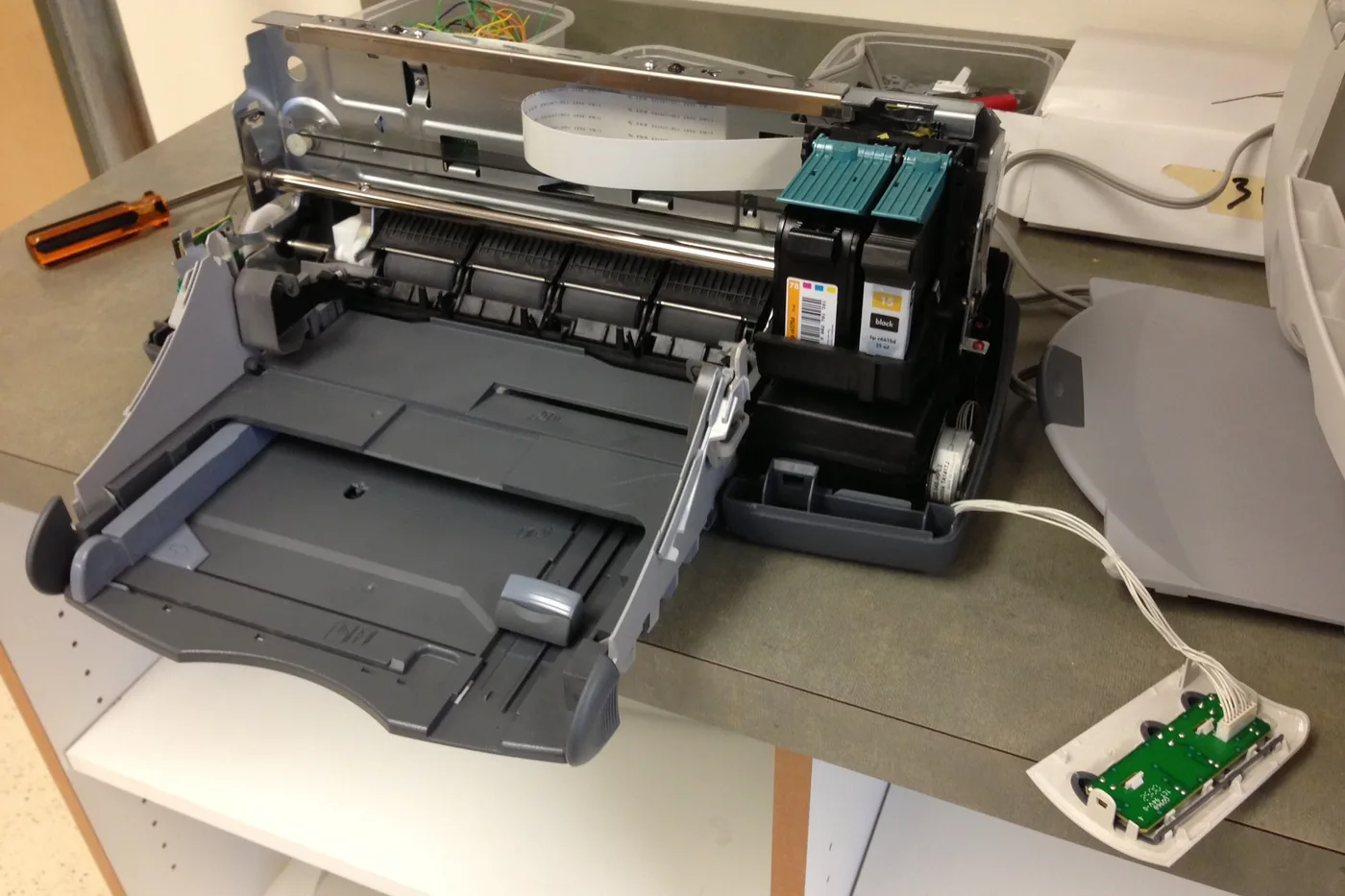
Smeared printer ink is often a settings problem, not a bad cartridge. Photo or glossy settings lay down more ink than plain paper can soak up.
Match the paper type setting to stop printer ink smudges
- Open the print dialog and find Paper Type or Media Type.
- Pick the setting that matches the paper in the tray, such as Plain Paper.
- Print one test page and let it sit for a minute before touching it.
- If glossy paper still smears, check that the shiny side faces the right way for your printer.
If smudges stay on plain paper with the right setting, run a nozzle check next.
More help
- Same niche: Printer ink cartridges — alcohol limits on removable printhead contacts · Clean printhead streaks without wasting ink · Printer ink — run a color-bar nozzle check before a clean · Printer ink cartridges — mark color multipacks vs single-color boxes · How to find your exact ink or toner number · Printer ink cartridges — laser streaks are not an inkjet clean · Printer ink — let the printer finish priming before you power off · Mark a FIFO date on printer ink multipacks · Printer ink — run a nozzle check before a second clean · Printer ink — photo the empty cartridge before you reorder · Printer ink cartridges — check contacts before another clean · Printer ink — turn the printer off with its own button · Printer says empty after a new cartridge · Printer ink cartridges — print a supplies status page first · Printhead alignment without wasting paper · Printer ink — confirm printhead ribbon latch fully closed · Remove cartridge protective tape before trusting empty · Printer ink — rock a new cartridge gently after you peel the tape · Printer ink — bring a cold cartridge to room temperature before install · Printer ink — reseat printhead ribbon after a wipe · Standard vs XL ink cartridges · Store printer ink cartridges upright and cool · Printer ink — print one page a week so nozzles stay wet · All printer ink guides
- Related fixes elsewhere: Write the month on your refrigerator water filter