Remove cartridge protective tape before trusting empty
Printer ink
Leftover pull-tab or orange protective tape on a new ink or toner cartridge can fool the chip into an empty or missing warning — peel every labeled seal before you reseat.
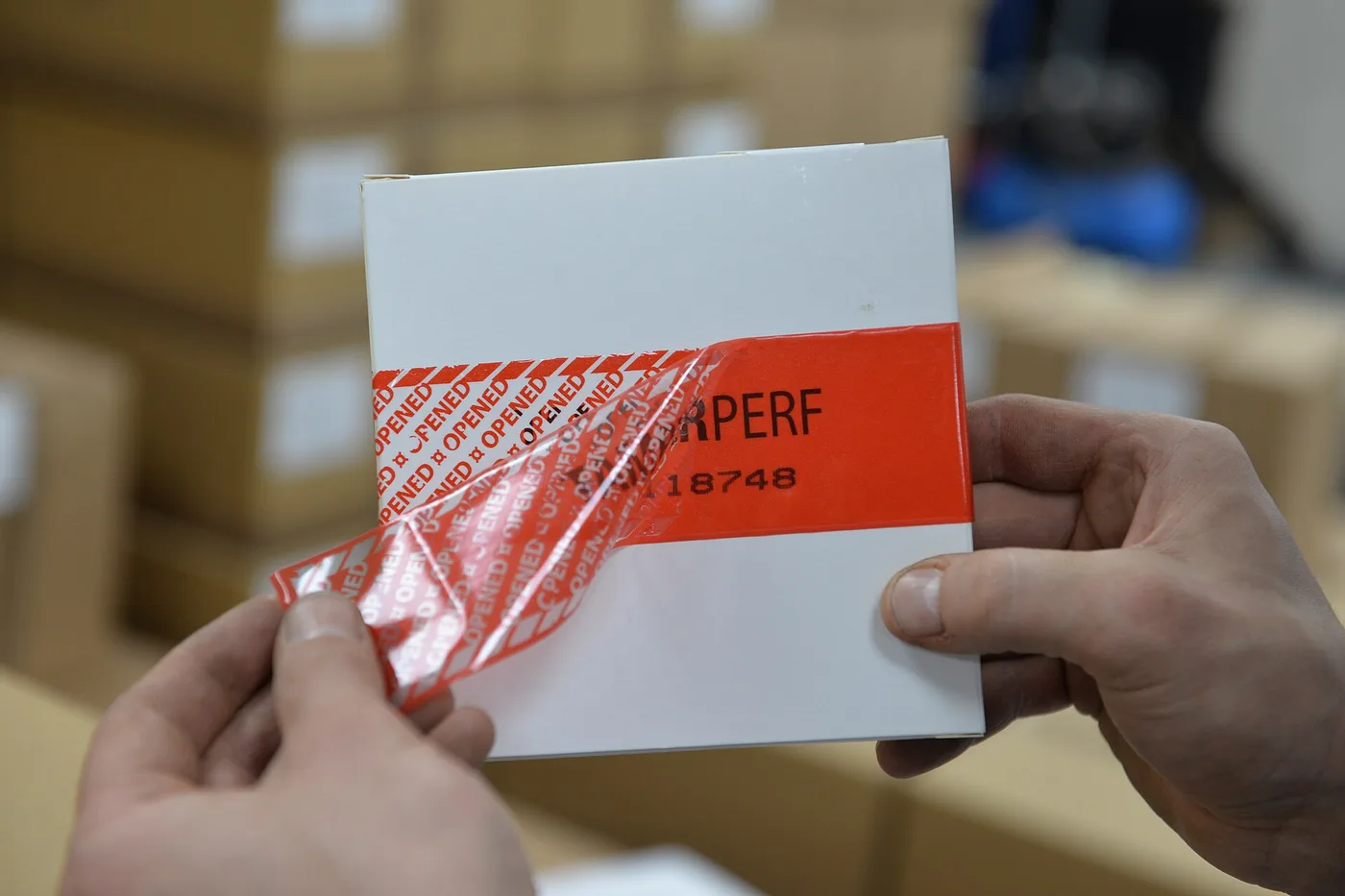
A brand-new cartridge that immediately reads empty or missing sometimes still has packaging tape or a pull-tab on it. Fix that before you run another clean cycle or buy a second supply.
Peel every labeled seal
- Pull the cartridge back out. Look for a plastic pull-tab, orange clip, or clear film over vents, nozzles, or the chip area — makers mark these as remove-before-use.
- Peel only the labeled protective pieces. Leave permanent labels, barcodes, and the chip itself alone.
- Confirm nothing is stuck over the gold contacts or nozzle face. Reinstall until it clicks, close the door, and print a nozzle check — not a deep clean yet.
If the number on the box matches the door sticker and every tab is gone, continue with Printer says empty after a new cartridge for a single reseat and dry contact wipe.
Honest stop
Do not peel chip labels, scrape contacts with metal, or chase “chip reset” tricks. If a matching sealed cartridge still fails after the tab is fully removed, try the maker’s support path or a different sealed cartridge of the same number.
More help
- Same niche: Printer ink cartridges — alcohol limits on removable printhead contacts · Clean printhead streaks without wasting ink · Printer ink — run a color-bar nozzle check before a clean · Printer ink cartridges — mark color multipacks vs single-color boxes · How to find your exact ink or toner number · Printer ink cartridges — laser streaks are not an inkjet clean · Printer ink — let the printer finish priming before you power off · Mark a FIFO date on printer ink multipacks · Printer ink smudging — match the paper type setting · Printer ink — run a nozzle check before a second clean · Printer ink — photo the empty cartridge before you reorder · Printer ink cartridges — check contacts before another clean · Printer ink — turn the printer off with its own button · Printer says empty after a new cartridge · Printer ink cartridges — print a supplies status page first · Printhead alignment without wasting paper · Printer ink — confirm printhead ribbon latch fully closed · Printer ink — rock a new cartridge gently after you peel the tape · Printer ink — bring a cold cartridge to room temperature before install · Printer ink — reseat printhead ribbon after a wipe · Standard vs XL ink cartridges · Store printer ink cartridges upright and cool · Printer ink — print one page a week so nozzles stay wet · All printer ink guides
- Related fixes elsewhere: Vacuum lost suction — check bag and filters · Match your vacuum bag or filter type